How to Connect a Local stdio MCP Server to ChatGPT Web with OpenAI Secure MCP Tunnel
AI Agents
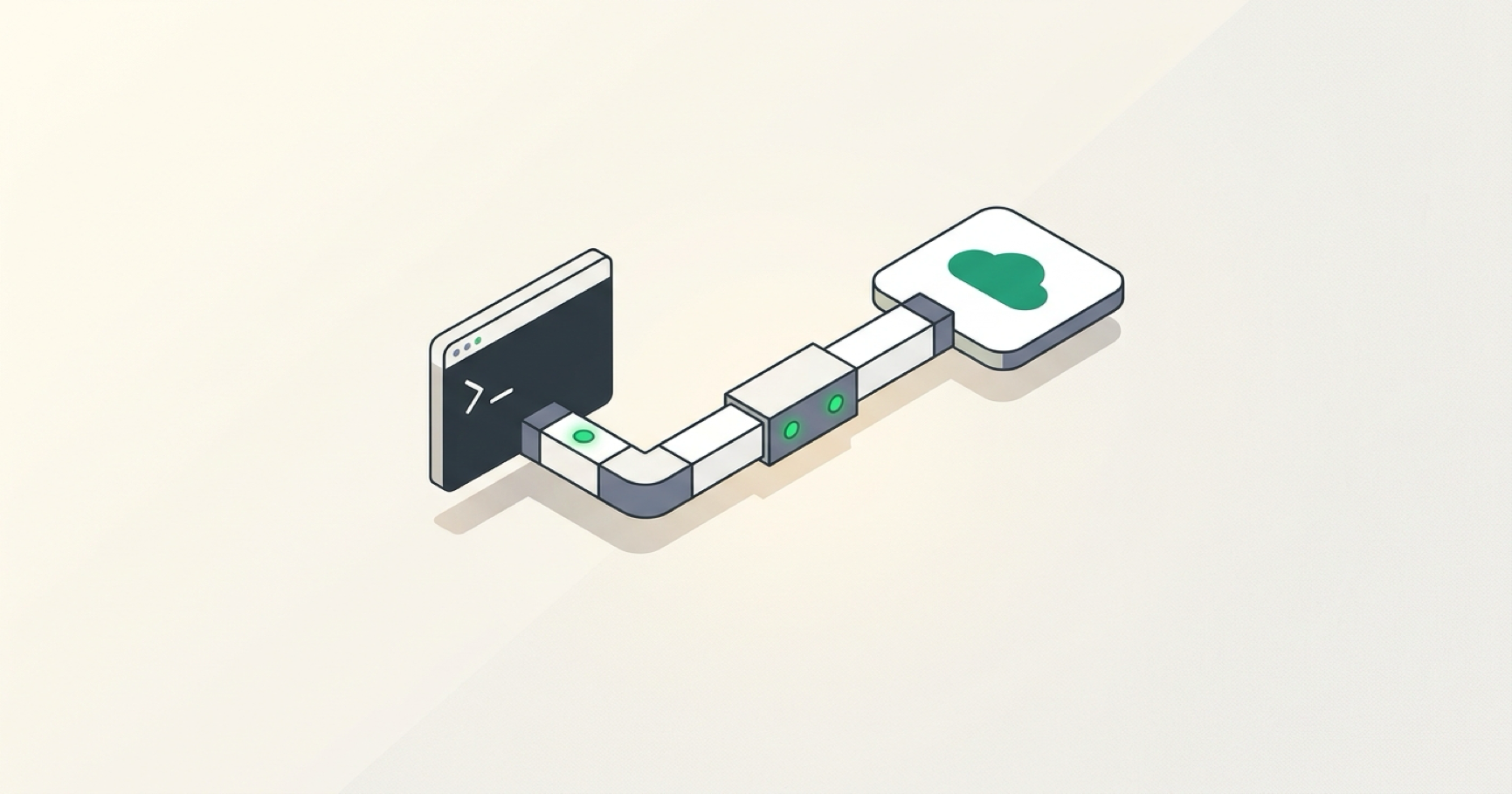
A local MCP server that communicates over stdio is easy for a desktop client to launch. ChatGPT Web is different: it runs in the cloud and cannot simply cross into your Mac and execute a local process.
I ran into exactly that boundary while trying to use Google’s official google-analytics-mcp from ChatGPT Web. The path that finally worked was OpenAI Secure MCP Tunnel:
Local MCP server (stdio)
  ↓
OpenAI Secure MCP Tunnel (tunnel-client)
  ↓
ChatGPT Web / Developer Mode / custom MCP app
This article documents the complete setup I used on macOS, including the parts that actually took time: Google OAuth, isolating failures by layer, local proxy settings, launchd, and verifying that ChatGPT could execute a real Analytics report.
Google Analytics is only the concrete example. The reusable problem is broader: how to expose a local stdio MCP to ChatGPT Web without turning the MCP server itself into a public service.
The final result was an end-to-end working chain: ChatGPT Web discovered the MCP, listed the GA4 properties available to the authenticated account, ran an Analytics report, and the local tunnel survived process termination through a tested launchd restart.
Architecture and why I chose this path
The working topology is:
Google OAuth / ADC
  ↓
Google Analytics MCP (local stdio process)
  ↓
OpenAI Secure MCP Tunnel (127.0.0.1:8766)
  ↓
ChatGPT Web
  ↓
Google Analytics Admin API / Data API
The tunnel only listens on the local loopback address:
127.0.0.1:8766
I did not configure router port forwarding, and I did not expose the MCP server directly to the public internet.
Why I did not build another public reverse proxy
There are several ways to make a local capability reachable from a cloud service: Cloudflare Tunnel, Tailscale, frp, Nginx plus a public VPS, a custom stdio-to-HTTP/SSE/Streamable HTTP wrapper, or a third-party MCP gateway.
I did not add those layers here because the target was narrow: let ChatGPT Web call this local MCP. Secure MCP Tunnel already provides an outbound bridge for that chain, so adding a public endpoint, certificates, access control, and another reverse proxy would have created infrastructure I did not need for this case.
Environment used in this setup
| Component | Actual setup |
|---|---|
| OS / architecture | macOS on Apple Silicon |
| Package/runtime tools | Homebrew, Python, pipx |
| Core tooling | Google Cloud CLI, OpenAI tunnel-client |
| MCP server | Google’s official google-analytics-mcp repository |
| ChatGPT environment | ChatGPT Business workspace with Developer Mode enabled |
| Local network | Google access depended on http://127.0.0.1:7890 |
| Working directory | ~/local-mcps/google-analytics-mcp (my convention, not a requirement) |
Step 1: validate Google auth and the MCP before touching ChatGPT
The most useful debugging rule from this setup was simple: do not debug OAuth, the MCP server, the tunnel, and ChatGPT at the same time.
I first started the official MCP by itself:
cd ~/local-mcps/google-analytics-mcp
pipx run analytics-mcp
If that local process does not work, adding a tunnel only makes the failure harder to locate.
Enable the required Google APIs
I confirmed that these two APIs were enabled in Google Cloud:
analyticsadmin.googleapis.com— Google Analytics Admin APIanalyticsdata.googleapis.com— Google Analytics Data API
Use read-only Application Default Credentials
Authentication used Google Application Default Credentials (ADC) with the read-only scope:
https://www.googleapis.com/auth/analytics.readonly
That means this MCP connection could read Analytics data but did not have permission to change GA configuration.
The credential file lived outside the public repository, with restricted permissions:
chmod 600 <credential-file>
Do not commit OAuth client secrets, ADC credentials, access tokens, or other authentication material to Git, paste them into an AI chat, or write them into ordinary troubleshooting logs.
The OAuth failure: “This app is blocked”
The first authorization attempt was blocked by Google. It was tempting to blame the MCP server, a missing API, or the scope, but the failure turned out to be in the normal OAuth configuration layer.
The useful checks were:
- OAuth consent screen configuration
- whether the current account was included in Test users
- whether the OAuth client type matched the flow
- whether the browser was signed in to the intended Google account
- whether the requested scope was appropriate
After correcting the OAuth configuration and authorizing again, the MCP itself required no code changes.
The lesson is worth keeping: when identity fails, fix the identity layer before changing the MCP.
Verify the MCP with real data calls
Once authentication worked, I tested the Analytics MCP locally before introducing the tunnel.
Two checks passed:
- It listed 10 GA4 properties that the account could access.
- It successfully ran a report using the
activeUsersmetric.
One test report returned zero rows. That was not a transport failure. For a data MCP, a successful API response with zero rows is different from a failed tool call. In that situation, check the date range, property, dimensions, and metrics before rebuilding the environment.
Step 2: bridge stdio with OpenAI Secure MCP Tunnel
The tunnel profile points at a local startup script:
~/local-mcps/google-analytics-mcp/scripts/run-analytics-mcp.sh
The script still launches the official server directly:
pipx run analytics-mcp
I did not fork Google’s MCP repository or modify its application logic.
After the tunnel starts, its local listener is:
127.0.0.1:8766
No public inbound port was opened on the router, firewall, or a cloud host.
Step 3: use the tunnel health endpoints as the debugging boundary
Before opening ChatGPT Web, I checked the tunnel locally:
curl -fsS http://127.0.0.1:8766/healthz
curl -fsS http://127.0.0.1:8766/readyz
curl -fsS http://127.0.0.1:8766/api/status | jq
The healthy state I verified was:
/healthz→live/readyz→ready/api/statusshowed a healthy main channelprobe_status=ok- transport was
stdio - the MCP command pointed to the expected startup script
This became the main debugging boundary. If the tunnel is not locally ready, deleting and recreating the ChatGPT app does not solve the actual problem.
At that point I would first check:
- the MCP startup command
- whether
pipxexists in the runtime PATH - whether OAuth / ADC credentials are usable
- missing environment variables
- whether the local proxy reached the tunnel process
- whether the MCP starts and then exits immediately
Step 4: the macOS trap — Terminal works, launchd fails
This was the most misleading failure in the setup.
Running the MCP or tunnel manually in Terminal worked because the interactive shell already had a complete environment. A background process launched by launchd did not inherit all of it.
My machine needed this local proxy to reach Google:
http://127.0.0.1:7890
When the background process lost the proxy configuration or could not resolve the expected PATH, the result was the classic “works manually, fails as a service” problem.
The runtime values worth checking were:
PATHHTTP_PROXY/HTTPS_PROXY- Google credential-related variables
- working directory
- absolute paths for
pipx/ Python
The practical fix was to explicitly export the environment required by the service in run-analytics-mcp.sh instead of assuming launchd would inherit the interactive shell.
Step 5: connect ChatGPT Web and perform an end-to-end test
Only after the MCP and tunnel passed local checks did I move to ChatGPT Web:
- Sign in to the ChatGPT Business workspace.
- Enable Developer Mode in the workspace settings.
- Create the MCP app using the tunnel connection information.
The first tool discovery was not instant. I saw a slow discover step and server/discover stderr output, but ChatGPT eventually discovered the tool list, so I did not modify Google’s MCP code.
The actual acceptance test was done in a ChatGPT conversation:
- ChatGPT discovered the Google Analytics MCP.
- It listed the GA4 properties available to the account.
- It executed an Analytics report successfully.
That closed the entire chain:
ChatGPT
  ↓
Secure MCP Tunnel
  ↓
Local MCP on the Mac
  ↓
Google Analytics API
For this kind of integration, “the tunnel says online” is not enough. The real acceptance criterion is a successful target tool call from ChatGPT itself.
Step 6: keep the tunnel alive with launchd
A terminal window is fine for testing, but not for a service I want available after login, process crashes, or a Mac restart.
I handed the tunnel process to macOS launchd.
- Service label:
com.m1.google-analytics-mcp-tunnel - plist:
~/Library/LaunchAgents/com.m1.google-analytics-mcp-tunnel.plist
The relevant service controls were:
RunAtLoad— start when loadedKeepAlive— keep the process runningThrottleInterval— limit restart frequency
Useful commands:
launchctl print gui/$(id -u)/com.m1.google-analytics-mcp-tunnel
launchctl kickstart -k gui/$(id -u)/com.m1.google-analytics-mcp-tunnel
I tested the recovery instead of assuming it worked
I deliberately terminated the original tunnel-client process. launchd started a new PID, and /healthz plus /readyz returned to the healthy state.
That test matters: a plist existing on disk is not proof that crash recovery works.
A four-layer troubleshooting order
When the chain fails, I now debug it from the bottom up:
1. Data source / OAuth
  ↓
2. MCP server
  ↓
3. Secure MCP Tunnel
  ↓
4. ChatGPT Web
1. Data source and authentication
For the Google Analytics example, verify the Admin API and Data API, OAuth authorization, local ADC credentials, and the read-only scope. For another MCP, this layer may instead be an API token, database credential, or another OAuth flow.
2. MCP server
Run it outside the tunnel and confirm that the server stays up, tools can be listed, and at least one real tool call succeeds locally.
3. Tunnel
Check healthz, readyz, and api/status. Distinguish a tunnel network failure from a failure to launch the underlying MCP process.
4. ChatGPT Web
Only then check Developer Mode, Business workspace permissions, app connection state, whether the app is visible in the current conversation, and tool discovery.
Common misdiagnoses I hit or wanted to avoid
ChatGPT cannot find the tools
Check the local tunnel first. If /readyz and /api/status are not healthy, repeated changes in the ChatGPT UI are aimed at the wrong layer.
A report returns zero rows
Zero rows do not mean the MCP is broken if the tool call and Google API response succeeded. Change the date range, property, metric, or dimension first.
It stops working after a Mac restart
Check the launchd service and the tunnel endpoints before regenerating Google credentials:
launchctl print gui/$(id -u)/com.m1.google-analytics-mcp-tunnel
curl -fsS http://127.0.0.1:8766/healthz
curl -fsS http://127.0.0.1:8766/readyz
curl -fsS http://127.0.0.1:8766/api/status | jq
Manual startup works but launchd does not
Treat it as an environment mismatch first: PATH, proxy variables, credential paths, and the working directory.
Security boundaries and infrastructure cost
The final setup kept several explicit boundaries:
- Google Analytics was read-only. I used only the
analytics.readonlyscope. - No public inbound port. The tunnel listened only on
127.0.0.1:8766locally. - Credentials stayed out of public artifacts. OAuth client secrets, ADC credentials / refresh tokens, the OpenAI Runtime API key, proxy authentication information, account details, and internal resource IDs should not be committed or published.
- Public write-ups need redaction. Local usernames, private paths, tunnel IDs, and GA property IDs should be generalized where needed.
The Analytics Admin API and Data API still have quotas. This setup did not add BigQuery, Cloud Run, a public VPS, or a third-party MCP SaaS host. The main prerequisite was access to the relevant ChatGPT workspace and Secure MCP Tunnel capability rather than additional infrastructure.
Reusing the pattern with other stdio MCP servers
If an MCP server already exposes a remotely accessible HTTP / Streamable HTTP endpoint, another local tunnel may be unnecessary.
The pattern is most useful when the capability looks like this:
Local command
  ↓
stdio MCP server
  ↓
Needs to be callable from ChatGPT Web
For another MCP, replace the Google-specific authentication and data source layer with the equivalent GitHub token, database credential, local file access, private API, or OAuth flow. The debugging order stays the same:
Validate the MCP
  ↓
Validate the tunnel
  ↓
Connect ChatGPT
  ↓
Add supervision and security hardening
Final checklist
- Google’s official Analytics MCP, not a third-party fork
- Google Analytics Admin API enabled
- Google Analytics Data API enabled
- ADC limited to
analytics.readonly - MCP tested locally without the tunnel
- GA4 properties were actually returned
- An Analytics report was actually executed
-
/healthzreturnedlive -
/readyzreturnedready -
/api/statusshowed a healthy MCP probe - ChatGPT Web discovered and called the MCP tools
-
launchdstartup configured - crash recovery tested by killing the tunnel process
- no public inbound port opened
- private credentials kept out of the public repository
What I would keep from this experiment
The hard part was not querying Google Analytics. It was defining the boundaries between OAuth, a local stdio MCP, a cloud client, the tunnel lifecycle, an interactive shell, and a background service.
That is why I would not describe this as merely a “Google Analytics MCP installation guide.” The reusable result is a debugging and operations pattern for turning a local stdio MCP into a stable capability that ChatGPT Web can actually call.