Turning an Idle RTX 4070 SUPER PC into a Wake-on-LAN Compute Node for My M1 Mac
Contents
As I mentioned in Running Ovis on an Always-On Mac: Multi-Device Agent Management in Practice, I keep a 16 GB MacBook Air M1 plugged in with the lid closed and sleep disabled, running 24/7 as my main agent coordinator.
For watching videos and writing code, the M1 has been rock-solid. That held up until I recently needed to batch-transcribe and encode long videos—16 GB of unified memory hit a wall immediately, turning the whole machine sluggish.
So I looked at the idle hardware collecting dust in the corner: an old NUC 8, and a Windows desktop I had built a few years back before component prices spiked, equipped with 32 GB of RAM and a 12 GB RTX 4070 SUPER.
Honestly, my first instinct was to use the NUC 8. It is tiny, looks power-efficient, and barely takes up desk space. I also briefly considered throwing the jobs onto Google Colab.
When I asked AI to evaluate the options, the verdict was blunt: the NUC 8’s 8th-gen low-power CPU and Iris Plus 655 integrated graphics would run Whisper transcription and video encoding slower than the M1 itself—a pure downgrade. Colab looks free and convenient on paper, but for local always-on AI agents it is awkward, prone to disconnects, and annoying whenever large media files need to move back and forth.
Using the 4070S as a compute node made far more sense. As for the power bill I was initially worried about, AI pointed out that I did not have to leave it idling 24/7. A desktop pulls 40 to 50 W at idle, sure, but in S3 sleep whole-system draw drops to 3 to 5 W—less than leaving the NUC 8 powered on.
That settled the design: make the 4070S desktop a Wake-on-LAN compute node that stays in S3 sleep by default. Whenever the M1 hits a heavy job, it sends a wake packet, wakes the desktop to crunch the work, and puts it back to sleep afterward.
Headless SSH and Wake-on-LAN Setup
Because I rarely turned this desktop on, it had no monitor attached. Out of laziness, I connected over UU Remote, opened a terminal, and ran the setup script AI gave me to bring up LAN SSH. Just as I thought I could stay completely hands-off, AI told me it could not enable remote wake because the BIOS settings blocked it.
Left with no choice, I hauled the tower over to a monitor. At first I plugged into the card’s single HDMI port: Windows booted with a picture just fine, yet rebooting into BIOS gave me a black screen every time. It turned out RTX 40-series cards default to DisplayPort during UEFI/BIOS initialization, where HDMI handshakes easily fail. Switching to a DisplayPort-to-DisplayPort cable fixed it immediately. After flipping the BIOS options, AI reported another roadblock: the desktop was plugged directly into the ISP modem rather than my router, creating two separate subnets that magic packets could not cross.
So I switched my Redmi router into wired Access Point (AP) mode so the whole home shared one subnet. Right after the switch, however, the M1 could not reach the desktop at all and kept throwing No route to host. Tracking it down led straight to a macOS 15 bug triggered by changing LAN subnets, where the system’s Local Network permission wedges in the background. Rebooting the M1 cleared it right up.
In testing, sending windows-sleep puts the desktop into S3 sleep within 1 second at roughly 3 W; sending a magic packet with windows-wake a few seconds later brings the machine and SSH back online in 3.8 to 4.1 seconds. I then pinned a static IP on the wired NIC, powered the desktop down cleanly, moved it back behind the Redmi router, and booted it headless. Sitting at the Windows lock screen with no monitor attached, it starts sshd automatically, keeps its IP, and wakes and sleeps reliably.
Letting Other AI Agents Use It
Once remote wake worked reliably, I had AI write a global skill called windows-gpu-offload so Antigravity, Codex, and Claude Code all know there is a 4070S available on the LAN.
I put two firm rules into that skill. First, it is strictly for compute offload: batch Whisper transcription, FFmpeg NVENC hardware encoding, and heavy OpenCV processing can go there, while AI image generation, AI video generation, and creative content generation are off-limits. Second, there is a routing threshold: light tasks stay on the M1, and only heavy workloads—or jobs likely to make the M1 stutter—get offloaded to the 4070S.
Smoothing Out the Rough Edges
Multiple jobs can easily overlap, so Task A finishing must never put the PC to sleep and kill Task B mid-run.
AI solved this with two layers of protection. On the M1 side, every job acquires a lease tagged with its job ID on wake and releases only its own lease when finished; as long as another lease is still active, sleep is skipped:
windows-wake --job <id> --pid $$ --ttl 7200
# Release only this job's lease when done
windows-sleep --job <id>
The lease store uses flock file locks to prevent races, and dead leases from crashed or timed-out scripts get pruned automatically. Even when zero leases remain, the sleep path still SSHes into the Windows host for a final sanity check: if another SSH session is open, GPU utilization is at or above 15%, encoder/decoder utilization is at or above 10%, or ffmpeg.exe / whisper processes are still running, it refuses to sleep.
During early trial runs I noticed another annoyance: every power cycle made the desktop emit a faint buzz. As someone sensitive to noise, I could not stand that, so I added two scheduling rules. After the last job finishes, the desktop does not sleep immediately; a daemon on the M1 counts down a 20-minute idle cooldown so consecutive jobs reuse the awake session, entering S3 only after 20 straight minutes of verified idleness.
I also set quiet hours from midnight to 8:00 AM while I sleep. If the desktop is already asleep during that window, windows-wake blocks the request and returns exit code 2, telling the agent to defer heavy work until after 8:00 AM. Jobs already running before midnight are allowed to finish, then go down on a shortened 3-minute cooldown.
Building a Monitoring Dashboard
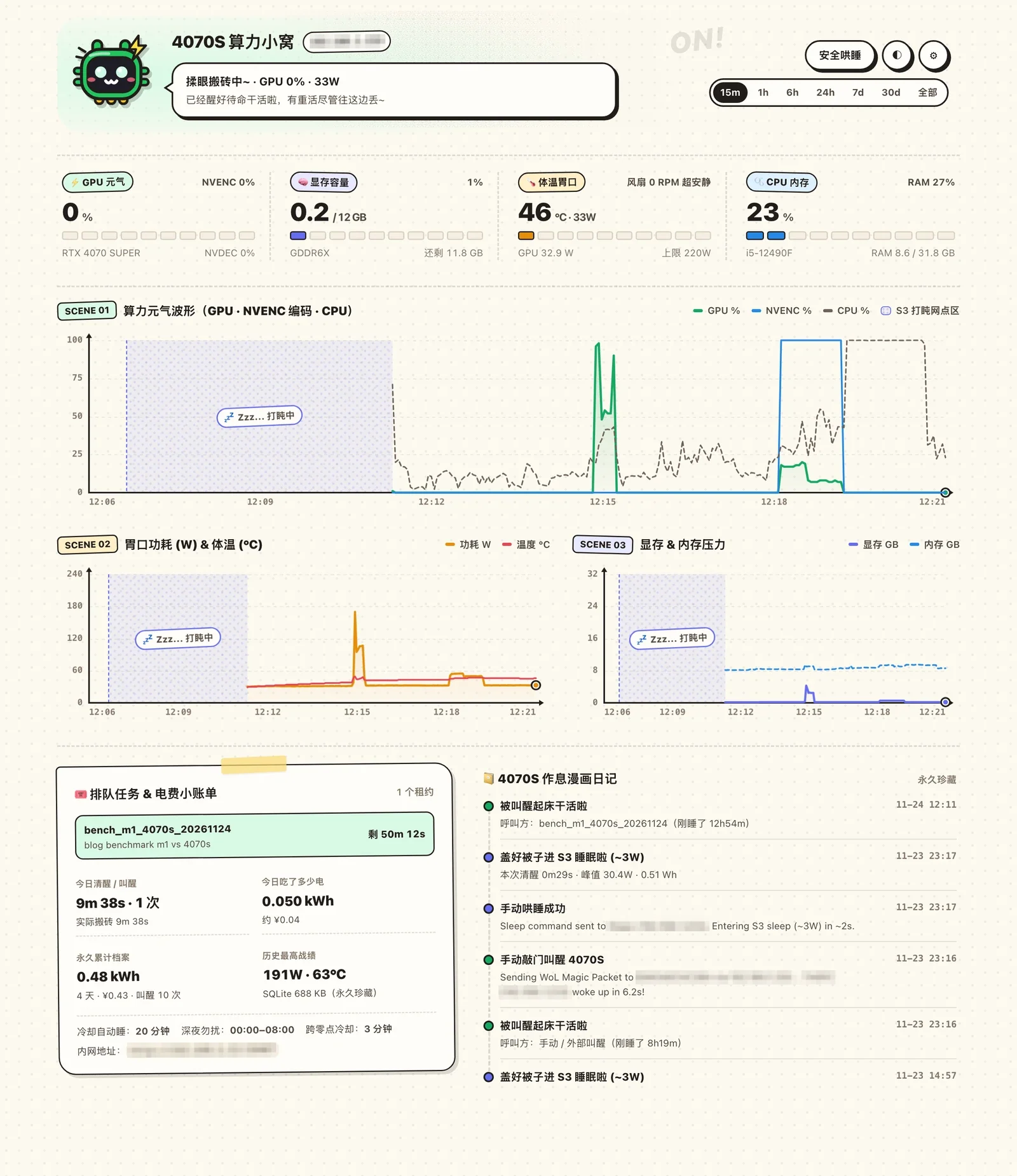
I also built a lightweight dashboard for this compute node so I can watch real-time curves for CPU, GPU, VRAM, RAM pressure, temperature, and power draw—seeing at a glance when it is asleep at zero and which job woke it up. None of these numbers are strictly necessary, but watching them move is deeply satisfying.
The screenshot below is switched to the 15-minute window, capturing a full wake-and-work cycle. The dotted region on the left is S3 sleep; right after wake-up, the green GPU spike pushing power to 177 W is Whisper transcription, followed by the blue NVENC bar and gray dashed CPU ceiling during FFmpeg video encoding.
Pure M1 vs. RTX 4070 SUPER Benchmarks
Saying “slow and laggy” is vague, so I ran head-to-head tests on the two exact heavy workloads I offload most. The first input is a 10-minute Mandarin speech clip transcribed with whisper-large-v3-turbo in FP16—using Apple GPU-accelerated mlx-whisper on the M1 and CUDA faster-whisper on the 4070S. The second input is a 2-minute 1080p 60fps high-bitrate video (218 MB), tested with both hardware and software encoding in FFmpeg.
| Workload | Pure M1, 16 GB | 4070S Host, 32 GB RAM + 12 GB VRAM | Speedup |
|---|---|---|---|
| 10-min speech transcription, single-stream | 142.3 s, 4.2x real-time | 17.4 s, 34.5x real-time | 8.2x faster |
10-min speech transcription, batched batch_size=16 | — | 6.1 s inference / 8.9 s total | Up to 23.4x faster |
| 2-min 1080p 60fps HEVC hardware encode, 8 Mbps | 38.3 s, 188.0 fps | 14.8 s, 486.2 fps | 2.6x faster |
| 2-min 1080p 60fps H.264 hardware encode, 8 Mbps | 34.9 s, 206.5 fps | 13.6 s, 528.2 fps | 2.6x faster |
2-min 1080p 60fps libx264 software encode, CRF 20 | 305.1 s, 23.6 fps | 87.9 s, 81.9 fps, i5-12490F | 3.5x faster |
The widest gap is speech transcription. On the same 10-minute clip, both single-stream runs produced the exact same 3,656 characters, yet even with native Metal acceleration the M1 needed over two minutes and carved 2.2 GB out of its 16 GB unified memory. In the batched mode my worker uses by default, the 4070S finished inference in 6.1 seconds—8.9 seconds including model loading and decoding—keeping its 4.3 GB peak footprint entirely inside dedicated VRAM.
Video encoding splits into two cases. For a single hardware-encoded stream, the M1’s built-in media engine actually holds up fairly well: the 4070S is 2.6x faster while drawing only around 55 W. Once a job needs libx264 software encoding, the fanless MacBook Air throttles hard and takes over five minutes for two minutes of footage, whereas the desktop’s i5-12490F finishes in under a minute and a half. Switching to high-quality HEVC hardware encoding on the 4070S (p6, cq 22) cuts that down to 34.6 seconds.
Factoring in transfer overhead makes the routing boundary obvious. In this run, waking the PC took 3.3 seconds and sending the 218 MB video over LAN SCP took 7.3 seconds, so for a stray two-minute clip, offloading barely beats running hardware encode locally on the M1. Once batch long-video transcription and encoding pile up, though, the gap turns into tens of seconds versus half an hour—and with the heavy lifting offloaded, the M1 stays completely responsive for coding and watching videos.
FAQ
Why does an RTX 40-series GPU show a black screen in BIOS over HDMI while Windows displays normally?
Which MSI BIOS settings are required for Wake-on-LAN?
Why don't Wake-on-LAN magic packets work when the PC is plugged into the ISP modem and the Mac is on a router?
192.168.1.x subnet while the Mac sat behind the router on 192.168.31.x. Outbound SSH from the Mac worked fine, but Layer 2 Wake-on-LAN broadcast magic packets do not cross a router boundary. Switching my Redmi router to wired Access Point (AP) mode put the whole house on the modem’s subnet and fixed wake-up immediately.How do you fix macOS returning No route to host for LAN devices after switching subnets?
No route to host. macOS’s Local Network permission daemon had wedged in the background with no prompt and no toggle in System Settings. Rebooting the Mac resolved it immediately.How do you stop one finished job from putting a shared Wake-on-LAN PC to sleep while another job is still running?
flock-protected lease with its own job ID on wake and only releases its own lease when done—if other leases remain, sleep is skipped. Even when zero leases remain, the script checks the PC over SSH before sleeping: active SSH sessions, GPU utilization at or above 15%, encoder/decoder utilization at or above 10%, or running ffmpeg.exe and whisper processes all block sleep.How much faster is an RTX 4070 SUPER than an M1 MacBook Air for Whisper transcription and FFmpeg encoding?
whisper-large-v3-turbo (FP16) took 142.3 s on my 16 GB M1 via mlx-whisper (using 2.2 GB of unified memory), compared to 17.4 s single-stream or 6.1 s batched inference (batch_size=16, 8.9 s including model load) on the 4070S via faster-whisper. For a 2-minute 1080p 60fps video, 4070S NVENC hardware encoding took 13.6 to 14.8 s versus 34.9 to 38.3 s on M1 VideoToolbox (2.6x faster), and libx264 software encoding took 87.9 s on the i5-12490F versus 305.1 s on the fanless M1 (3.5x faster).How much power does a Wake-on-LAN RTX 4070 SUPER node draw, and how do you keep it from waking up at night?
windows-wake blocks wake attempts with exit code 2 so agents defer heavy jobs until 8:00 AM.
Comments
Spot a flaw, hit the same snag, or just want to say hi — leave a note below.
Loading comments…